 Marpos Studio
Open your Astro site in Studio
Adapt an existing Astro site with a coding assistant, then open it in Studio and check your editor’s first change.
Ask AI to adapt your Astro site
Open your website’s repository in a coding assistant that can edit files. Copy the prompt below and replace the bracketed details. Describe a real task your editor should be able to finish. For Margin, that could be “change an article headline, write a new story, and replace its cover photo.” If you know the installed Studio version and operating system, include them.
Adapt the Astro website in [app folder, or find it in this repository] for Marpos Studio. My editor needs to [describe the editing tasks]. Use [an existing page URL] as the first example.
Follow the Astro adaptation prompt and the public guides it links to. Inspect the Astro reference project for patterns that fit this site. https://github.com/ludulicious/marpos-studio-releases/blob/main/docs/ai-prompts.md#astro-adapt-an-existing-website
Inspect the installed Astro version, collections, routes, and image handling first. Tell me which files need to change and why. Then make the edits that let my editor finish those tasks. Preserve the design, URLs, record IDs, references, and deployment setup. Ask me before migrating content that uses an unsupported loader.
Trace one existing entry and one new entry from the Studio fields through the Astro templates. Check their preview URLs, their appearance in listings, and any images they use. Run the project’s checks and production build. Leave the changes in my working copy for review. I’ll handle commits, pushes, and deployment.
Give me a short handover with the files changed, the checks you actually ran, and the steps I still need to try in the Studio desktop app.
If your assistant can’t open GitHub links, paste the Astro prompt and the linked documentation into the conversation. Full Astro prompt in the release repository
Start with a working checkout
Choose a Git repository that already runs as an Astro site. Its website folder should contain a package.json that declares astro and an Astro content configuration. If you want a project to follow along with, Margin has a Posts collection and a published article you can compare with your local edits. Margin source on GitHub
For local development, install dependencies with the package manager and Node version declared by the website. For an npm project with a committed package-lock.json, run these commands in the website folder, then open the address Astro prints.
npm ci
npm run dev
Open the repository
- Open Marpos Studio and choose Open local repository.
- Choose the folder containing
.git. In a monorepo, select the Website folder containing the Astro app. - Select Open repository. Studio reads the installed project and lists its editable collections.
With a local repository, Studio writes directly to your working copy. Use your usual Git tools to commit and sync those changes. You can leave your own dev server running while you work with Studio’s preview.
Make one edit you can check
In Margin, open Posts, search for “room to breathe”, and open the article. Change the Title in Details, then open Side by side. The new headline should appear above the lake photograph. Choose Save changes, reopen the article, and check the title again. Your local Git diff should show the title change in the Markdown file.
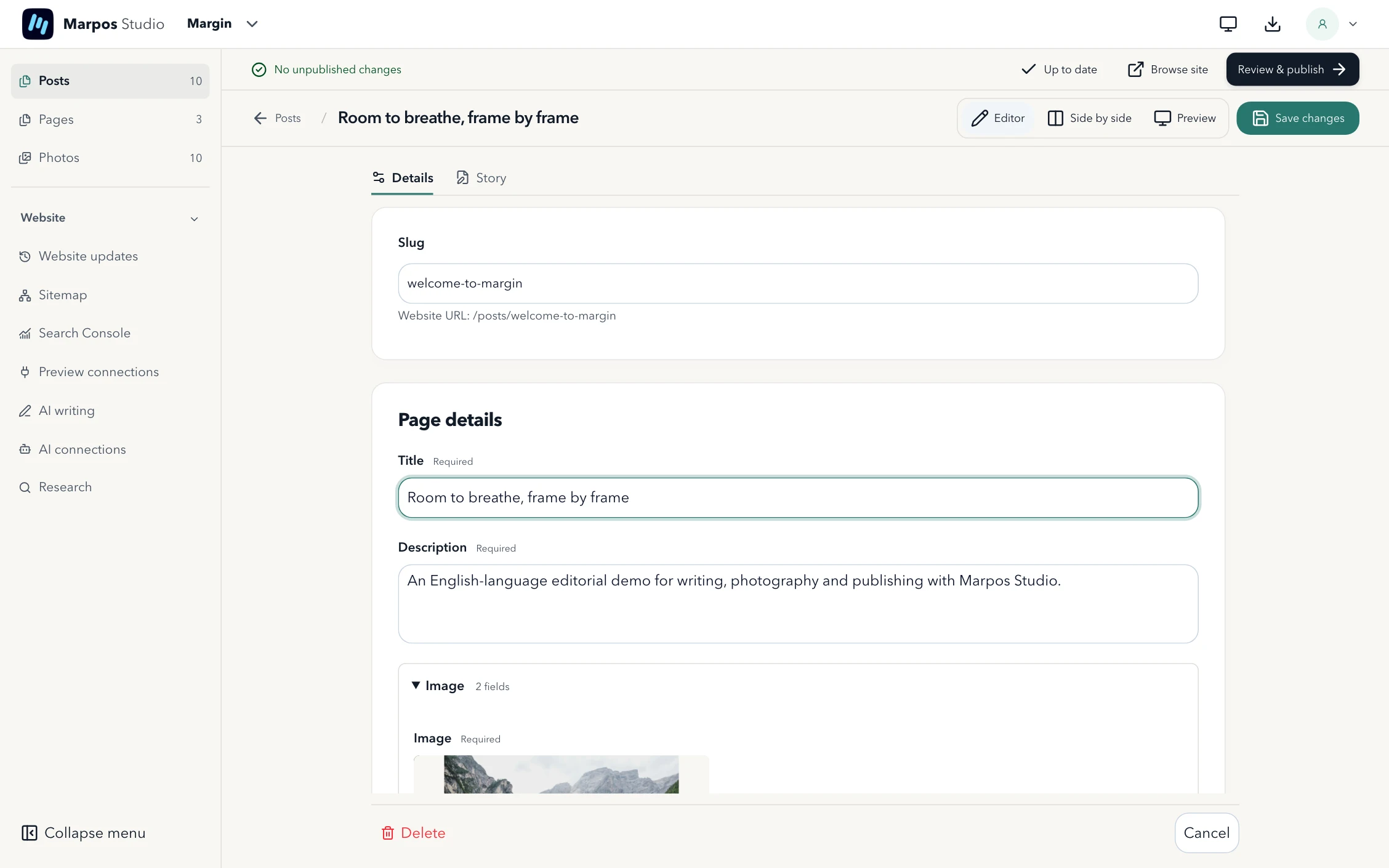
Try the task you gave the assistant on your own site. If authors can create stories, add a test entry, save and reopen it, then check its preview and the listing where readers should find it. If the task includes a cover photo, replace it and check the image and alt text on the rendered page. Studio handover checklist
Connect the client’s copy
Give the editor access to the repository on GitHub. In Studio, have them sign in with GitHub, select Add website, and choose that repository. If Studio finds several websites, select the correct app and choose Set up website. Studio downloads its own copy and installs dependencies using the project’s lockfile.
If setup stops at dependency installation, check the project’s Node version declaration and lockfile together. If setup finishes but a collection is missing, check its loader and schema in the next chapter.