 Marpos Studio
Review, publish, and confirm the live update
Take a saved edit through GitHub, run the website’s checks, and see which update your host is serving.
Follow one headline to GitHub
In a GitHub-connected website, save the article, then open Review & publish. Expand the changed entry. In Margin you can compare the original headline with the replacement before either reaches readers.
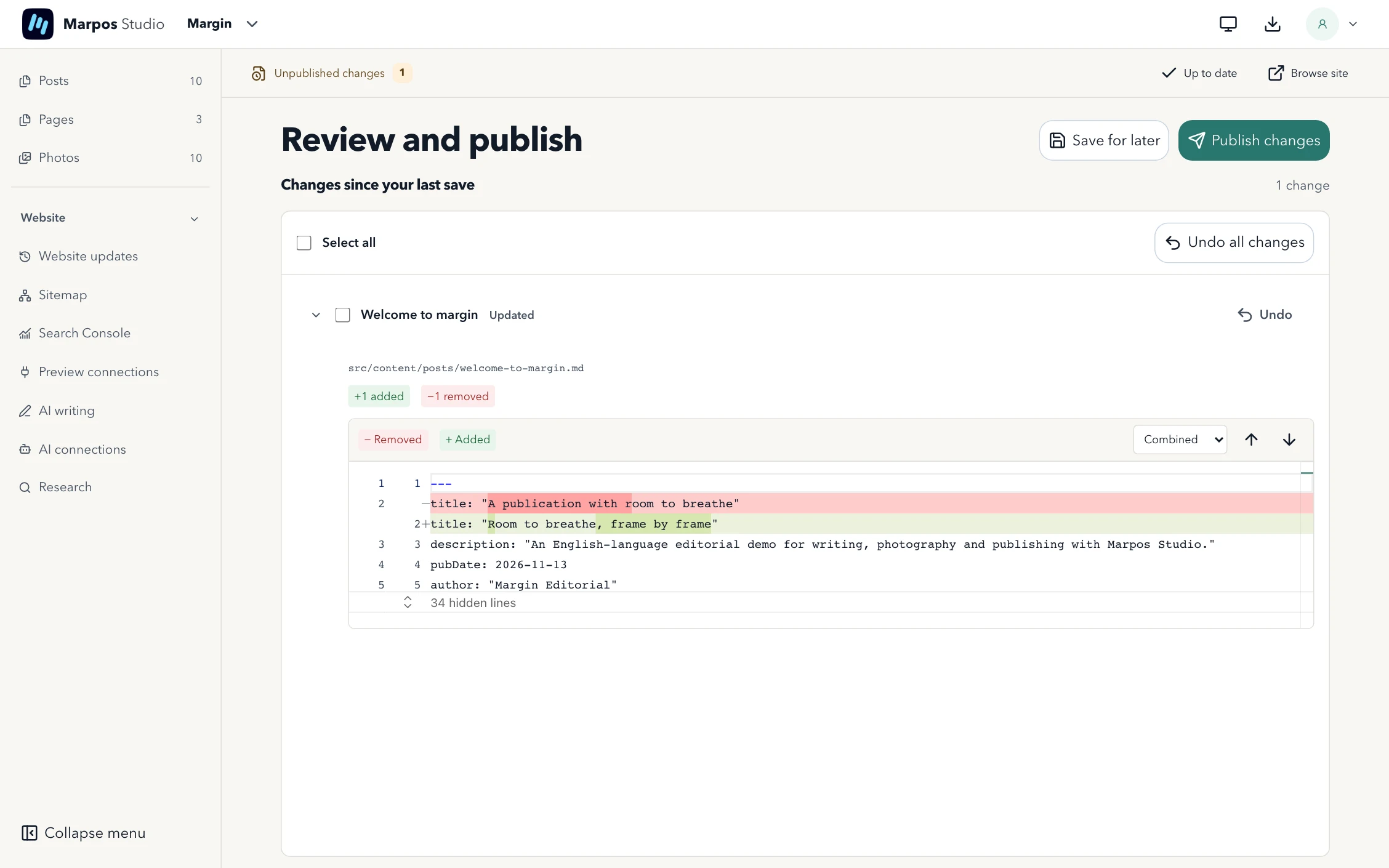
- Save changes keeps the edit in Studio’s local workspace.
- Save for later makes an online draft so work can continue before publication.
- Publish changes asks for confirmation, validates the changed content, and updates the repository’s default branch. The host deploys that revision through your existing build process.
A local repository opened directly in Studio uses your own Git workflow for committing and syncing. Connect the website through GitHub when the editor needs Studio’s online draft and publication controls.
Decide which checks run
Studio validates changed entries against the website’s own schemas. If the update also changes code, configuration or site structure, Studio runs the website’s configured checks. By default it uses the existing build script when no checks are declared.
To run a build for content edits too, add studio.commands.json next to the website’s package.json. The script name must exist in that package.
{
  "onPublish": "always",
  "checks": [
    { "id": "build", "label": "Build website", "script": "build" }
  ]
}
A failed check keeps the update open for review. Fix the reported problem and retry. For a handoff, test the same build command your host runs.
Confirm the public page
Under Review & publish, open Website updates and choose Manage environments. Add the final production URL, including the repository subpath for a GitHub Pages demo. Save the next update in Studio and let the host deploy it.
Studio includes public/marpos-deployment.json in that update. Check environments reads the deployed marker to identify which revision the host serves. If Studio shows Not confirmed, check the host’s build status and that the marker is accessible at the configured URL. Finally, open the published article and check the headline as a reader. Visit the published Margin article